Get help and support
Use the help widget for articles, AI answers, and messages to the TakePublic team.
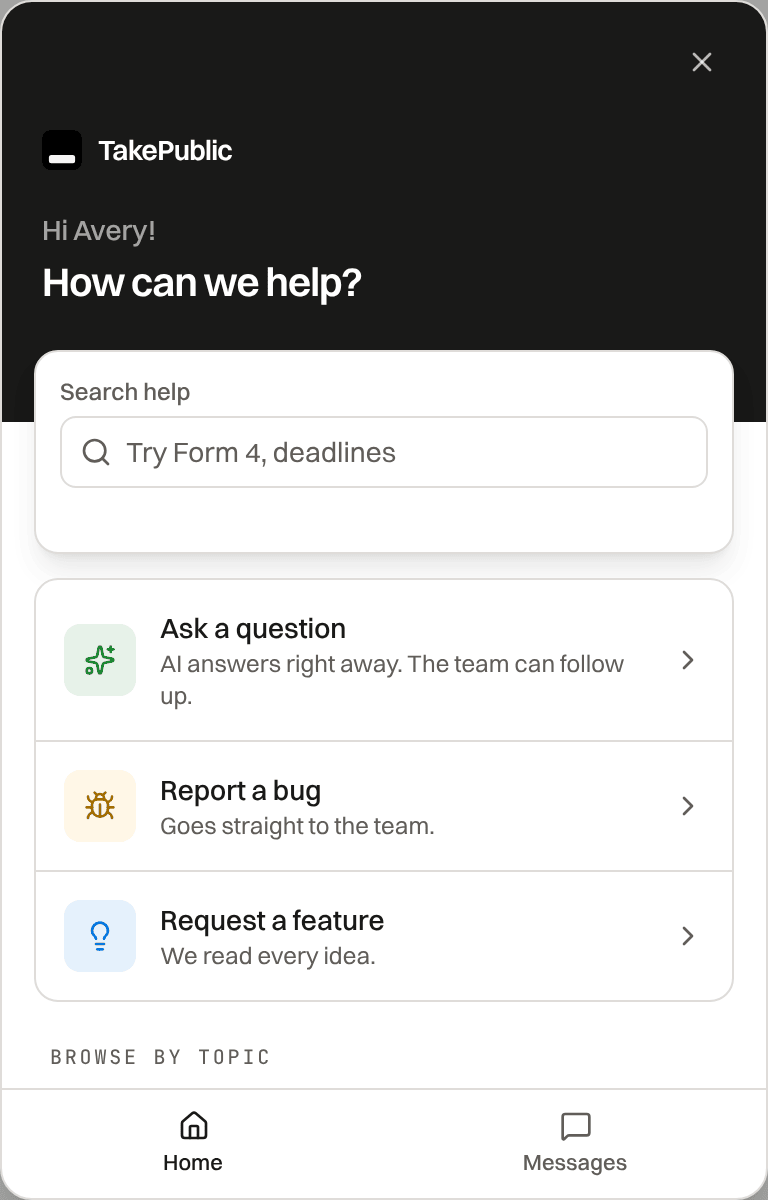
Open the help widget
The round help button in the lower-right corner, or Help in the header, opens the help articles, the AI assistant and your messages with the team.
Ask a question
The AI assistant answers from the help center articles and links the ones it used under each reply. To bring in a person, choose No, I need more help under an answer and then Ask the team, or ask for a person in your message. Ask the team also appears when the articles do not cover your question.
The assistant also reads images and PDFs you attach once they are checked for viruses, so a reply to a message with files can take a little longer.
The assistant cannot give legal advice.
Message the team
The Messages tab holds your support threads. We reply within one business day.
Every message you send, and the moment you ask for a person, reaches the team with the screen you wrote from, so you do not have to describe where you were.
There is no phone line: the team answers in writing, in Help, so every answer stays with the conversation. Signed out, sign in (or create an account) and open Help to write to the team.
- Attach up to 6 files of 10 MB each: screenshots, PDF, CSV, TXT, Excel or Word. Use the paperclip, drag files onto the conversation, or paste a screenshot into the message box.
More detail
When the team answers you get a bell notice ("Support replied on …") and an email whose Open the conversation opens the same thread in TakePublic; when the email says so, replying to it answers the team too.
Report a bug or request a feature
Report a bug and Request a feature ask a few questions first: which part of TakePublic (starting on your page), what happened or what kind of request, and how often or how much it would help. A bug also asks how serious it is, P1 Critical to P5 Minimal. If it stops you filing, tick I can't file because of this so the team reads it first. The page you're on and your files go with it.
Check the status page
status.takepublic.com shows what our own monitors see, probed about once a minute: the web app, the API, the filing pipeline, data integrity and the marketing site, each with one bar per day in ET. Open incidents are written by a person, with the time of the next update.
A bar is green at 99.9% uptime or better over the probes that completed that day, amber at 99% or better, red below, and grey only when no probe completed; its tooltip gives the percent, how many probes ran and how many failed. A probe that gets no answer is retried once before anything is recorded, so one slow moment never marks a day.
"EDGAR is closed" on the status page is EDGAR's schedule, not an outage: filings requested after hours are sent when EDGAR reopens on the next business day (6:00 a.m. ET). Company admins receive incident emails; turn them off under Settings › Notifications.
Was this helpful?
Thanks for the feedback.Where each role lands on Home, Cmd+K search, where setup is done, and notifications.
Still need help?
Sign in and open the Help widget in the lower right corner to message the team. Replies land in the app and by email.
TakePublic is a technology platform, not a law firm, broker-dealer, or auditor. Forms 3, 4 and 5 prepared in TakePublic file only after the reviewer the company designates, such as its securities counsel, signs off; any other filing prepared in TakePublic files only after a licensed securities attorney signs off.